

Understanding iPhone File Management
Apple's iOS has evolved significantly over the years, but the way it handles downloads can still be confusing. Unlike a traditional desktop operating system where files are typically saved to a single "Downloads" folder, iOS distributes downloads across multiple apps and locations. This article provides a detailed walkthrough of where your downloaded files end up, how to access them, and how to take control of the process.
The Central Hub: The Files App
The Files app, identifiable by its blue folder icon, is the primary tool for managing local and cloud-based files on an iPhone. It serves as a centralized file manager, allowing you to browse, organize, and open documents, images, and other data. Most downloaded files from Safari, email attachments (if saved), and files from other apps that support the iOS document picker land in the Files app. The app integrates with iCloud Drive, local storage (On My iPhone), and third-party cloud services like Dropbox, Google Drive, and OneDrive. This integration makes it a powerful hub, but the exact location of a download depends on where the app chooses to save it.
Finding the Downloads Folder
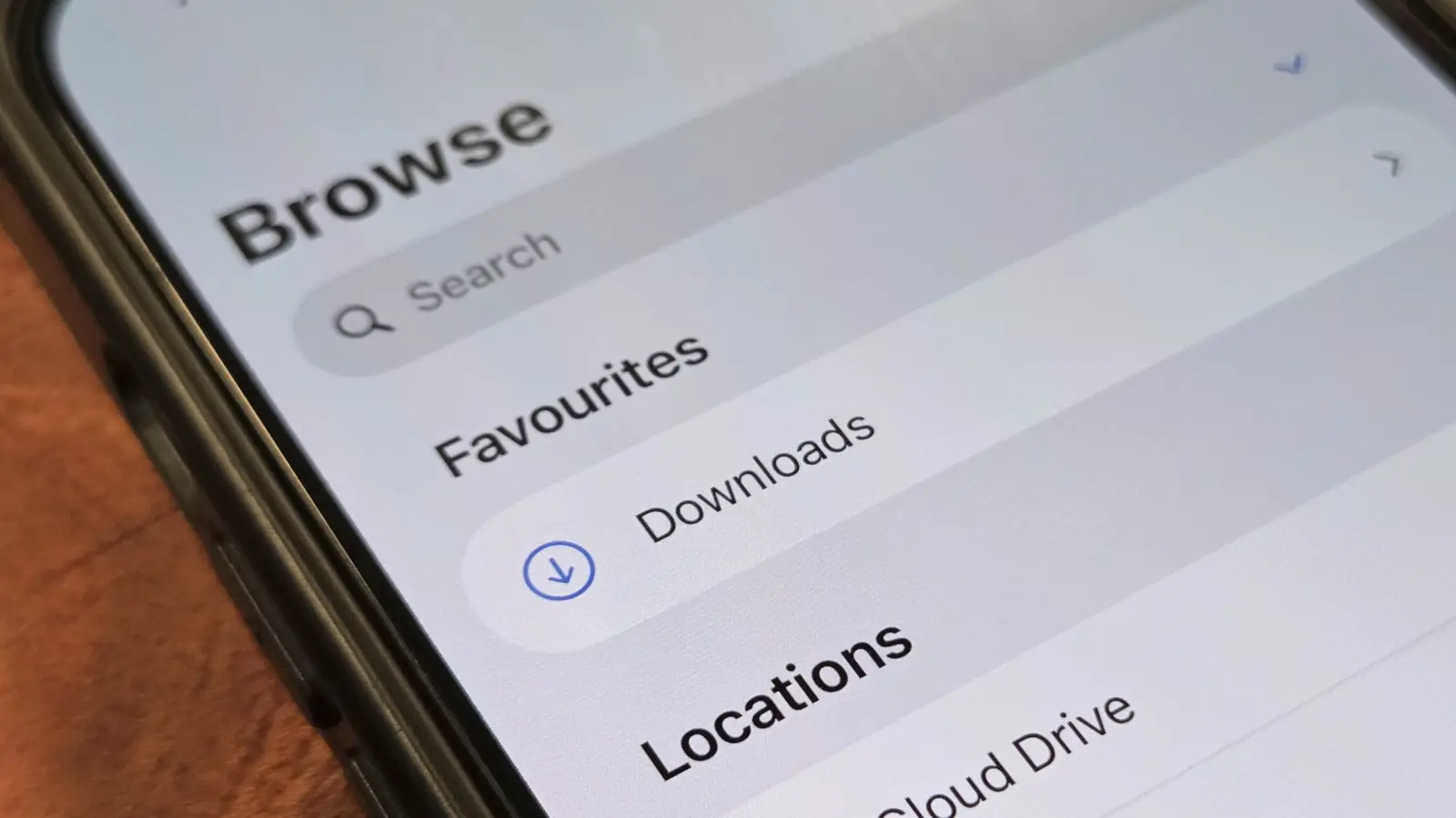
The most straightforward place to look is the Downloads folder within the Files app. To access it, open the Files app, tap the "Browse" tab at the bottom, and look for a folder labeled "Downloads." If you don't see it immediately, check under either "On My iPhone" or "iCloud Drive." Safari, for instance, saves PDFs, zip files, and other documents directly into the Downloads folder. You can also use the search bar at the top of the Files app to quickly locate a file by name. The Recents section in the Files app shows all recently accessed files, regardless of their actual folder, which can be a lifesaver when you've forgotten where a file was saved.
Spotlight Search: The Quickest Solution
If you're in a hurry, the fastest way to find a downloaded file is to use Spotlight Search. Swipe down from the middle of the home screen (or press the home button on older iPhones) and type the file name or a keyword. Spotlight indexes not only the Files app but also content from the Photos app, Mail, Messages, and many third-party apps. This means you can often locate a file directly from the search results without navigating through folders. It's particularly useful when you have a vague idea of what the file is called or when it was downloaded.
How Safari Handles Downloads
Safari, the default browser on iPhone, has its own download manager. When you download a file in Safari, a small download progress indicator appears at the top of the screen. Once complete, you can access the file by tapping the download arrow icon located on the right side of the address bar. This opens a tray showing recent downloads. Tapping a file in the tray opens it, but the file is also saved to the Downloads folder in the Files app. The download tray disappears after a while, but the file remains accessible through Files. Safari also offers options for where to save downloads, which we'll cover later.
Where Photos and Videos Go
One of the common points of confusion is that photos and videos downloaded from browsers or received in messaging apps often bypass the Files app entirely. By default, they are saved directly to the Photos app. In Safari, if you long-press an image and choose "Save Image," it goes straight to the Photos app under the Recents album. Similarly, videos saved from web pages are added to the Photos library. This behavior is designed to integrate seamlessly with the iPhone's media ecosystem, but it can surprise users who expect all downloads to appear in the Files app. To keep media files separate, you can use alternative methods, such as sharing the image to the Files app and selecting a specific folder.
Downloads from Other Browsers (Chrome, Firefox, etc.)
Third-party browsers like Google Chrome, Mozilla Firefox, and Microsoft Edge each have their own approach to downloads. Chrome, for example, creates a dedicated folder labeled "Chrome" under On My iPhone in the Files app. Files downloaded in Chrome are stored there, not in the main Downloads folder. This separation can be both a blessing and a curse. It helps keep files organized by source but requires users to remember which browser they used. The same principle applies to other browsers, so if you can't find a download in the standard Downloads folder, check for folders named after the browser you used.
Mail and Messaging Apps
Email attachments and files received through messaging apps like WhatsApp often remain within the app unless you explicitly save them. In the Mail app, attachments are displayed inline or available for download. You can tap and hold on an attachment to save it to the Files app, or open it directly. WhatsApp works similarly: media files (photos, videos) are stored in the Photos app by default, while documents (PDFs, Word files) can be saved using the share icon and selecting "Save to Files." Some apps also have their own internal storage, so it's always a good idea to check the app's own file or media section first. For instance, in WhatsApp, you can browse media and documents within the conversation settings.
Taking Control: Changing Default Download Location
iOS 26 introduced a much-needed feature: the ability to change where Safari saves downloads. To access this, go to Settings, then tap Apps, select Safari, and then tap Downloads. You will see several options: "On My iPhone" saves all downloads locally, making them accessible only on that device. "iCloud Drive" syncs downloads across all your Apple devices signed into the same iCloud account. The "Other" option lets you choose any folder on your iPhone or iCloud Drive, and you can even create a new folder. This flexibility is a game-changer for users who want to keep their downloads organized. Setting a consistent download location reduces the need to hunt for files later. Remember that this change only affects Safari; other browsers and apps maintain their own settings.
Using the Share Sheet to Save Files
If you find a file in an app that doesn't automatically save to a convenient location, you can use the iOS Share Sheet. Tap the share icon (a square with an upward arrow) and select "Save to Files" from the row of actions. You'll be prompted to choose a destination folder, including the option to create a new folder. This method works in nearly every app that supports file sharing, including Mail, WhatsApp, Google Drive, and even Safari for images. It's a universal workaround that puts you in full control of where your downloads land.
Third-Party File Manager Apps
For power users who want even more control, third-party file manager apps like Documents by Readdle offer advanced features. These apps provide a unified view of all files, support for more file types, and additional management tools like a built-in browser, media player, and file compression. While the Files app is robust for most needs, third-party alternatives can fill gaps, especially for tasks like managing downloads from multiple sources or accessing network drives. However, using such apps may introduce additional complexity and require you to manage permissions carefully.
Troubleshooting Missing Downloads
If you've downloaded a file but can't find it anywhere, start by checking the Recents section in the Files app. Then use Spotlight Search with a keyword. If the file is from a specific browser or app, open that app and look for its internal download history. It's also possible that the download failed or was interrupted—check the download progress indicator in Safari, Chrome, or the app you used. Another common issue is that files are saved to iCloud Drive by default, and if you have Offload Unused Apps enabled or limited iCloud storage, the file might not be available locally. In such cases, open the Files app, tap iCloud Drive, and ensure the file is actually downloaded to the device. You can also check Settings > General > iPhone Storage to see if any downloads are taking up space but might be hidden.
Organizing Your Downloads Folder
Once you've located your downloads, consider organizing them to prevent future confusion. In the Files app, you can create subfolders inside the Downloads folder or move files to custom folders. For example, create folders for documents, images, or specific projects. You can also use tags by long-pressing a file, tapping Tags, and assigning a color-coded label. Tags appear across all folders and iCloud Drive, making it easier to group related files regardless of where they're stored. Regularly cleaning out unwanted downloads also helps keep storage usage efficient.
Impact of iOS Updates on File Management
Each iOS iteration brings changes to how files are handled. Longtime users may recall that before iOS 11, the iPhone lacked a dedicated file manager—files were locked inside apps. The introduction of the Files app in iOS 11 was a major shift, and subsequent updates have refined it. iOS 13 added the ability to connect to external drives and servers. iOS 15 introduced improved sorting and view options. iOS 26 further streamlined the downloads experience by giving users control over Safari's save location. Staying informed about these updates can help you adapt quickly and avoid frustration. Apple typically announces new file management features during WWDC, so watching keynote recaps can give you a heads-up on upcoming changes.
Security and Privacy Considerations
Downloading files on an iPhone is generally safe due to the sandboxed nature of iOS, but caution is still advised. The Files app and Safari will warn you about potentially unsafe files, such as those that could contain malware or trigger unintended actions. Always avoid downloading files from untrusted sources, and consider using a third-party antivirus or security app if you frequently download documents from the web. Additionally, be mindful of files that contain personal data; the Files app allows you to password-protect specific folders or use iCloud encryption for sensitive documents. For downloads received via AirDrop, you can set your device to accept transfers only from contacts to minimize risks.
Syncing Downloads Across Devices
If you use multiple Apple devices, iCloud Drive is the easiest way to sync downloads. By setting Safari's download location to iCloud Drive, any file you download on your iPhone will appear on your iPad, Mac, and even Windows PC (if you have iCloud for Windows installed). This eliminates the need to manually transfer files between devices. However, note that this uses your iCloud storage, so you may need to upgrade your plan if you have many large downloads. Alternatively, third-party cloud services like Dropbox or Google Drive can be accessed via the Files app, but they won't automatically sync downloads unless you move files there manually.
Using Shortcuts for Download Automation
For advanced users, the Shortcuts app can automate download management. You can create a personal automation that triggers when a new file is added to a specific folder, then moves it to another location, renames it, or shares it. For example, you could set a shortcut to automatically move all PDFs downloaded via Safari to a "Work Documents" folder. While this requires some initial setup, it can save significant time if you handle many downloads regularly. The Shortcuts community offers pre-built automations for file management that can be customized to your needs.
Understanding where iPhone downloads go is a matter of familiarity with iOS's file architecture. By using the Files app, Spotlight Search, and adjusting download settings, you can keep your files organized and accessible. Whether you rely on Safari's built-in tray, the Photos app for media, or third-party browsers with their own folders, the key is to develop a habit of checking the Recents section and using the Share Sheet when in doubt. With iOS 26's new flexibility, you can now tailor the download experience to your workflow, making file management on iPhone more intuitive than ever.
Source: SlashGear News